Documentation
Setup
- Run and install through setup.exe
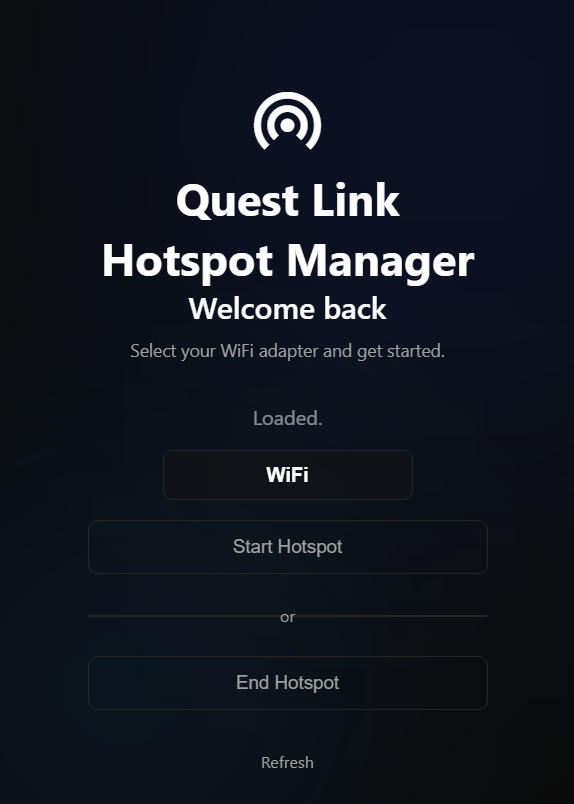
- Launch Quest Link Hotspot Manager from Apps or shortcuts.
Usage
- Set up a Windows Hotspot:
- Go to Settings > Network & Internet > Mobile hotspot
- Set the Network band to 5GHz
- Set the SSID (Name) and password used connect to the AP
- Using the app:
- Download and run qlhm.exe.
- Pick a device from the list and launch the hotspot.
- Use the End Hotspot button to close the connection and re-enable Wi-Fi scanning.
- Optional tweaks for stability:
- Disable Wi-Fi power saving mode:
- Open Control Panel → Network and Internet → Network Connections
- Find your adapter, right-click, and choose Properties
- Click Configure → Power Management
- Uncheck Allow the computer to turn off this device to save power or similar.
- Disable Wi-Fi power saving mode:
What does it do
This program fixes an issue in Windows 10/11 which causes latency spikes every few seconds for devices connected to it's hotspot caused by automatically searching for new networks. The script now changes ExecutionPolicy in PowerShell, so no UAC prompt is necessary.
Source code
Source code is available in the public Github Repo.
Use pip install -r requirements.txt and run main.py